
Free tool
Separate an Image Into Layers for Cricut
Separating an image into layers for Cricut means turning one flat PNG or JPG into a color-separated SVG, where every color is its own path that Design Space loads as its own layer. IntoLayers does this free in your browser, with no Cricut Access subscription.
One upload, one SVG, one file your machine can cut. No subscription, no account, no desktop editor.
Drag images here, or click to upload
Supports PNG, JPG. Max 10MB per file
Uploaded 0 / 1 (1 more allowed)
One PNG or JPEG. You can run your first conversion without an account.
Your layers land here
Upload an image and hit convert — text, subject, graphics and background each come back as their own transparent layer.
Drop your artwork below, then choose Trace to SVG.
What “separate an image into layers” means for Cricut
A photo or PNG is one flat picture. Design Space cuts it as a single shape unless the file already carries its own layers. Separating the image means rebuilding it as vector paths grouped by color, saved as an SVG, so each color can go on its own sheet of vinyl or cardstock.

How to separate an image into layers for Cricut
- 1
Upload your PNG or JPG
Drop it on the canvas above. Flat, high-contrast artwork separates best.
- 2
Click Trace to SVG
The tracing runs in your browser. Your image never leaves your device, and no credits are used.
- 3
Download the SVG
Every color in your design arrives as its own set of paths, capped at eight colors.
- 4
Upload the SVG to Cricut Design Space
Cricut's own help center puts it plainly: “Files designed with layers will automatically be separated into layers after uploading and saving.”
- 5
Delete what you don't need and assign materials
A white background becomes its own layer. Delete it, then set a color for each remaining layer.
Do you need Cricut Access to convert an image to layers?
Not with this tool. Cricut's own Convert to Layers is an Access-only feature.
Anyone can preview the results of Convert to Layers. To add the layers created with this feature to your Canvas, you'll need a Cricut Access™ subscription.
So you can look, but you cannot use what you see.
| Cricut Convert to Layers | IntoLayers | |
|---|---|---|
| Subscription | Cricut Access required to use the result | None |
| Where your image goes when tracing | Uploaded to your Cricut account | Never leaves your browser |
| Where it runs | Design Space | Your browser |
| Account needed | Cricut account | None |
| Output | Layers on your Canvas | A layered SVG file you own |
| Colors | As designed | Merged down to at most eight distinct colors |
The image row covers tracing on this page. The AI layer split described below is a separate, paid feature, and it does upload your image for processing.
What you get inside the SVG
One path set per color
Design Space picks these up as separate layers, so each one can go on its own sheet.
At most eight colors
Near-identical shades are merged before export. A raw trace of a photo can produce dozens of shades that look the same but demand a different sheet each, which you would then have to simplify by hand.
Cut lines follow what is visible
Where one shape sits on top of another, the lower shape is cut at the edge you can see. The hidden part is not invented.
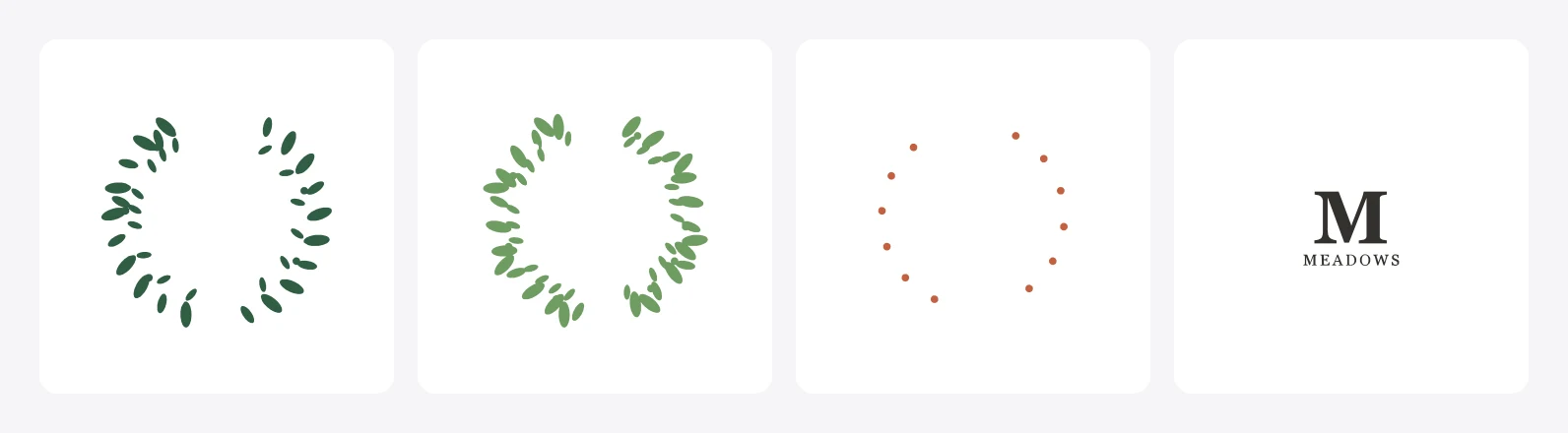
What to expect from your artwork
These are real results from tracing one image of each kind at about 1,000 pixels wide. The shape count is what Design Space will show you, and it drives how long the cut takes and how much weeding you do.
| Artwork | Colors | Separate shapes | Ready to cut? |
|---|---|---|---|
| Solid silhouette | 1 | 1 | Yes |
| Black outline design, such as a knot or mandala | 2 | 13 | Yes |
| Lettering and wordmarks | 3 | 15 | Yes |
| Flat clipart, icons and badges | 7 | 40 | Yes |
| Photograph | 7 | about 1,600 | No, too complex |
The pattern is simple. Flat artwork with a few solid colors gives you a handful of shapes you can actually cut. A photograph traces into a posterized picture made of well over a thousand shapes, which is a look rather than a cut file.
Common problems and what causes them
Design Space shows the design as one layer
A PNG or JPG uploads as a single flat shape no matter what is in it. Upload the SVG you downloaded here instead.
There is a solid rectangle behind everything
Your image had a background, so that background became its own color layer. Delete that layer in Design Space, or start from artwork with a transparent background.
Hundreds of tiny pieces you cannot weed
That comes from photographs and textured drawings. Every patch of shading becomes its own shape. Flat artwork avoids it.
Thin lines came out broken or missing
Hairline strokes on a pale background fall below what tracing can hold onto, and they break into fragments. Darken or thicken the lines before uploading. Solid black outlines trace cleanly at any weight you can actually cut.
Want the elements separated, not just the colors?
Color separation is enough for most cutting projects. If you need the objects apart, so you can move a badge away from a headline or resize one element on its own, the AI layer split does that instead. It is a paid feature: the free tier returns the background plus one separated element, and larger splits use credits. For cut files you rarely need it.
Silhouette Studio and xTool Creative Space
The same SVG works with other cutting software. Silhouette Studio and xTool Creative Space both import SVG, so the file you download here is not tied to Cricut. Check your own software's import settings for how it handles colors.
Frequently asked questions
How do I split an image into multiple layers?
Upload it to a tracer that separates colors, then export an SVG. Each color becomes its own path set, which cutting software reads as a separate layer.
How do I layer an image for Cricut?
Upload a layered SVG rather than a PNG. Design Space separates a layered file into layers on upload, while a flat PNG arrives as one piece.
How to turn an image into a layered SVG?
Trace it. This page does it free in the browser: upload a PNG or JPG, click Trace to SVG, and download the result.
Do SVGs support layers?
Yes. Groups and separate colored paths both act as layers when the file is imported into design or cutting software.
Can I use Convert to Layers without Cricut Access?
You can preview it, but adding those layers to your Canvas requires a subscription. Tracing on this page has no subscription.
Does the SVG keep my original colors?
Yes. Every shape is filled with a color taken from your image, not an approximation. Shades that are nearly identical are merged first, so you do not end up with layers you cannot tell apart.
How many colors will I get?
Up to eight. Most flat artwork lands well below that, and a silhouette comes back as one.