
For AI creators
For AI Creators: Fix One Thing Without Re-Rolling the Image
When ChatGPT, Midjourney or Gemini gets one word wrong, regenerating changes everything else too. Split the image into layers instead: the text comes off onto its own layer and the background underneath is rebuilt, so you can retype the word in Canva, Figma or Photopea and keep the rest of the image as it was.
On an image with a big subject that takes three layers or more. In the test below, the first 2-layer run lifted out the dog and left the misspelled line in the background.
Only upload images you have the right to edit.
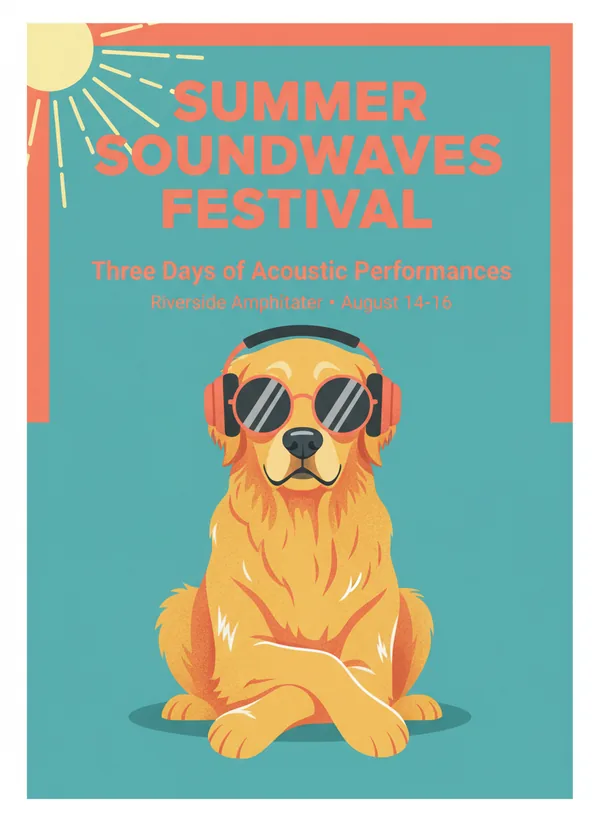
As generated
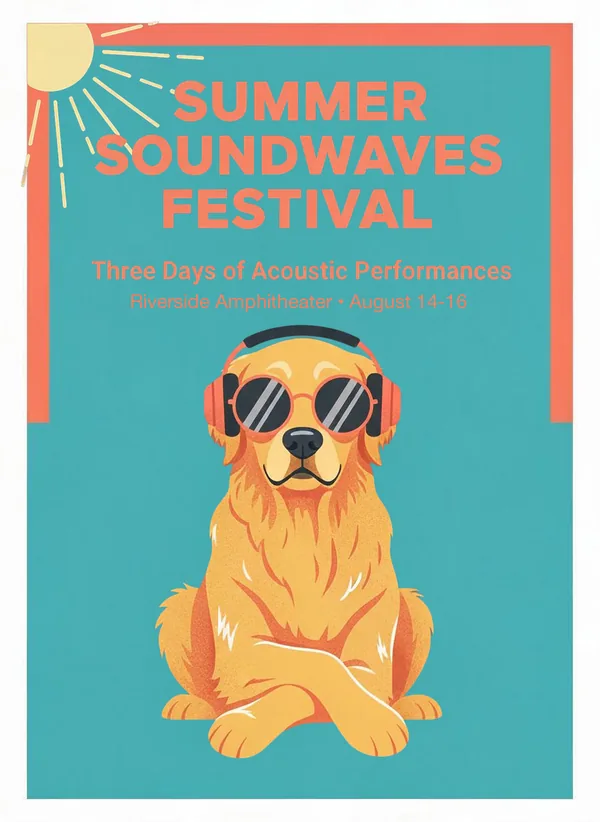
Fixed, everything else kept


Why does regenerating to fix text make it worse?
Because a regeneration is a new image. The model samples the whole picture again, so the parts you liked can change along with the word you wanted fixed.
Editing inside the generator — inpainting, or asking it to change only that word — can work, but it redraws the area and can get the word wrong again. Splitting keeps every pixel you were happy with exactly where it was.
How do you fix garbled text in an AI image?
Split it, erase the wrong word on the text layer, and type the right one. The background under the word has already been rebuilt.
- 1
Upload the image
PNG or JPEG. If the image has a main subject — a person, an animal, a product — pick three layers or more.
- 2
Run the split
Our 3-layer run on this poster took 43 seconds.
- 3
Download the layers
As a layered PSD, or every layer as a transparent PNG.
- 4
Erase the wrong word
On the text layer, remove the word or the whole line. Nothing needs patching behind it.
- 5
Type the right word
Match the font and colour, then export. The text layer is a picture of text, so this is the one step you do yourself.
What does the first run give you?
On this poster, not the fix. The first run is two layers, and it lifted out the dog and left every line of text — the typo included — in the background layer.
Two layers means the background plus one layer of elements, and on an image with a big subject the model gave that layer to the subject. On text-on-background designs such as flyers and price tags it goes the other way: every element comes off and you get a clean base, in three runs out of three. At three layers, this poster's text came off on a layer of its own, together with the sun decoration.
Background layer, 2 layers
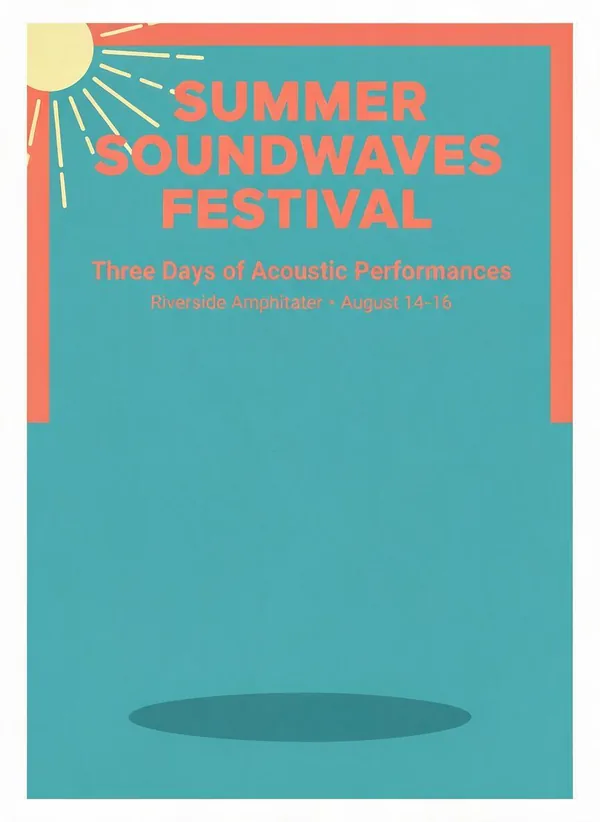
Background layer, 3 layers
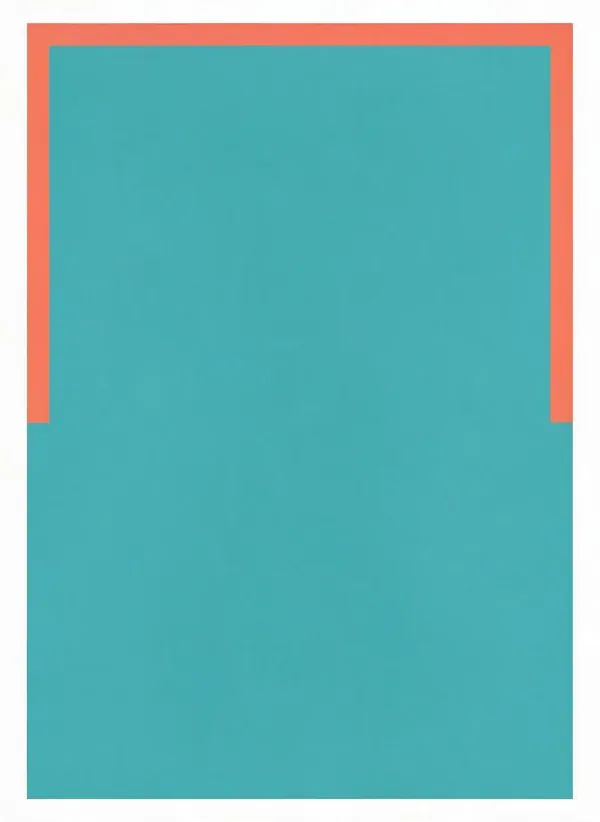
Three or more layers need a paid plan or a credit pack. A 3-layer run is 15 credits at 1K. See plans and credit packs.
How do you remove text from an image without affecting the background?
Use the background layer. It comes back with the text removed and the area behind it rebuilt, so there is nothing to clone-stamp.
How close is the rebuild? On two test images we drew ourselves — so we know exactly what the clean background should look like — the rebuilt background differed from it by an average of 1.84 and 8.89 levels out of 255.
On this poster the rebuilt teal came back a shade cooler: its red channel fell from 88 to 73 out of 255. The shift is even across the whole background, so there is no visible patch, but it will not match the original exactly side by side.
Does it work with ChatGPT, Midjourney, Gemini and Nano Banana images?
Yes. It works on the image file, not on the tool that made it: any PNG or JPEG under 10 MB and between 262,144 and 36 million pixels.
The poster on this page came from Nano Banana. If your tool saves WebP, convert it to PNG first; WebP is not accepted.
Editing the layers in Canva, Figma or Photopea
Every layer is a transparent PNG, so it drops into Canva, Figma or any editor that takes images. Photopea, a browser-based editor, opens the layered PSD with the layers in place.
What won't it fix?
Anything that is not a word sitting over the background.
Mistakes inside the subject
A wrong hand, an odd face or a garbled logo on a T-shirt belongs to the subject's layer and comes back as the model drew it.
The text is a picture of text
You erase and retype the word. You cannot put a cursor in it.
Things no layer kept
At three layers, the dog's shadow did not come back on any layer; the rebuilt background has no shadow either. At two layers it stayed in the background.
An exact colour match
The rebuilt background can come back a shade off, as the teal here did.
Fix your own image
Upload the image with the wrong word and pick three layers if it has a main subject.