
Layer count guide · tested 29 September 2026 at 1K
How Many Layers Should You Split an Image Into?
Pick the number of pieces you want to move on their own, plus one for the background. On our test flyer, 2 layers gave a text-free background, 3 put the text and the product on separate layers, and 9 or Auto gave each text line its own layer. More layers cost more credits and separate more finely.
We split one bakery flyer at every count the image to layers converter offers and put the results side by side below. Every number on this page comes from those six runs, one run per count, so treat them as one worked example rather than a guarantee for your image.
Only upload images you have the right to edit. Commercial use of the layers is fine when you hold the rights to the source image.
What does the layer count control?
It sets how many images come back, and the rebuilt background counts as one of them. With 2 layers you get the background plus one layer holding every separated element; each step up lets the model split that group into smaller pieces.
- The options are 2, 3, 5, 7 or 9 layers, or Auto, which lets the model decide and returns anywhere from 2 to 17 layers. There is no 4 or 6.
- Low counts merge related elements instead of dropping them: on the flyer, all the text travelled together at 3 layers, and the bread stayed on its cutting board until 7.
- Each layer comes back named, in its stacking order and in its original position, and downloads as a layered PSD, transparent PNGs or a layered SVG.
What does one flyer look like at 2, 3, 5, 7, 9 and Auto?
This is the input: a bakery flyer with a logo, a photo of bread on a board, a headline, a price, a date line and a line of fine print. Below it is every layer each run returned, the background first.
The flat flyer that went in

2 layers requested

3 layers requested

5 layers requested
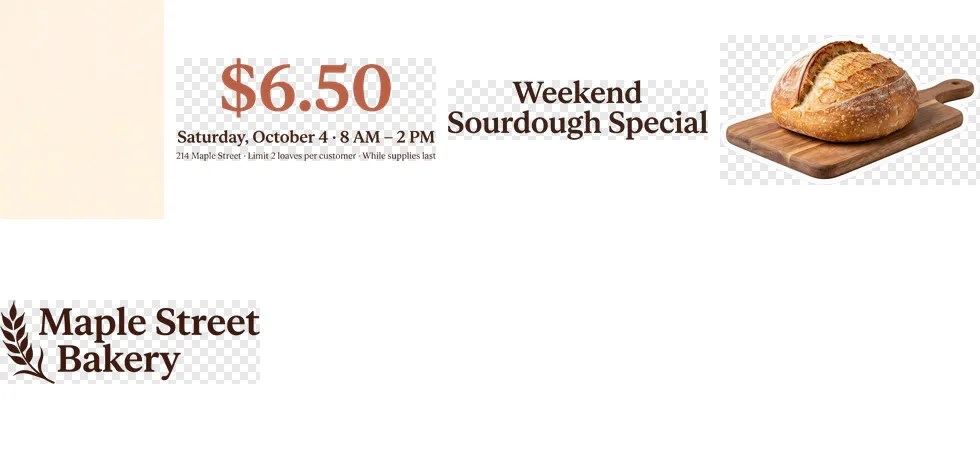
7 layers requested
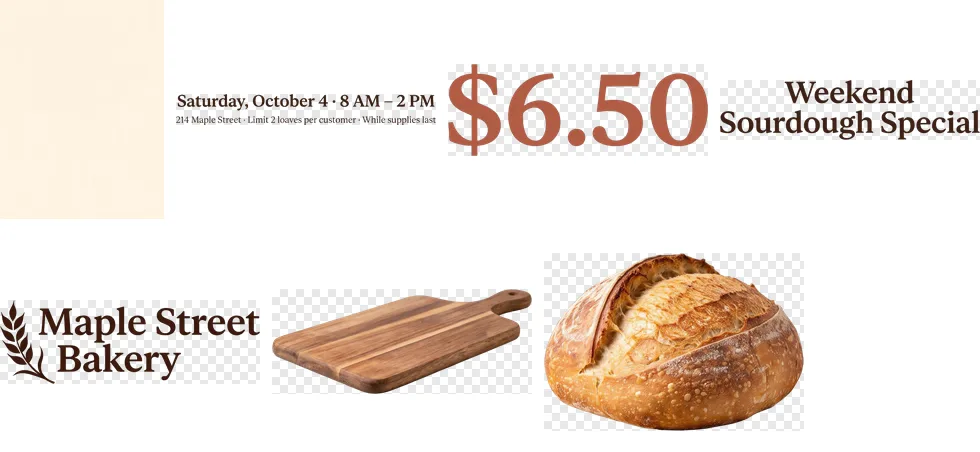
9 layers requested
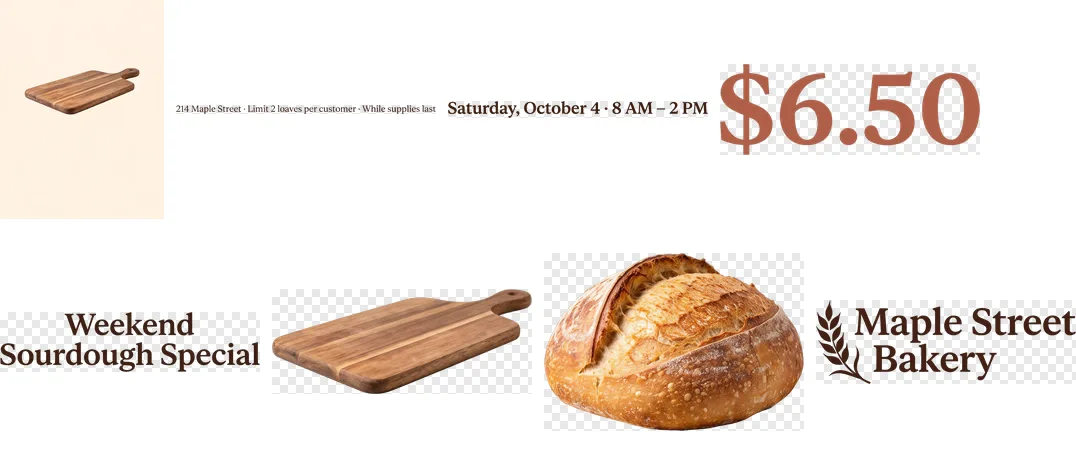
Auto
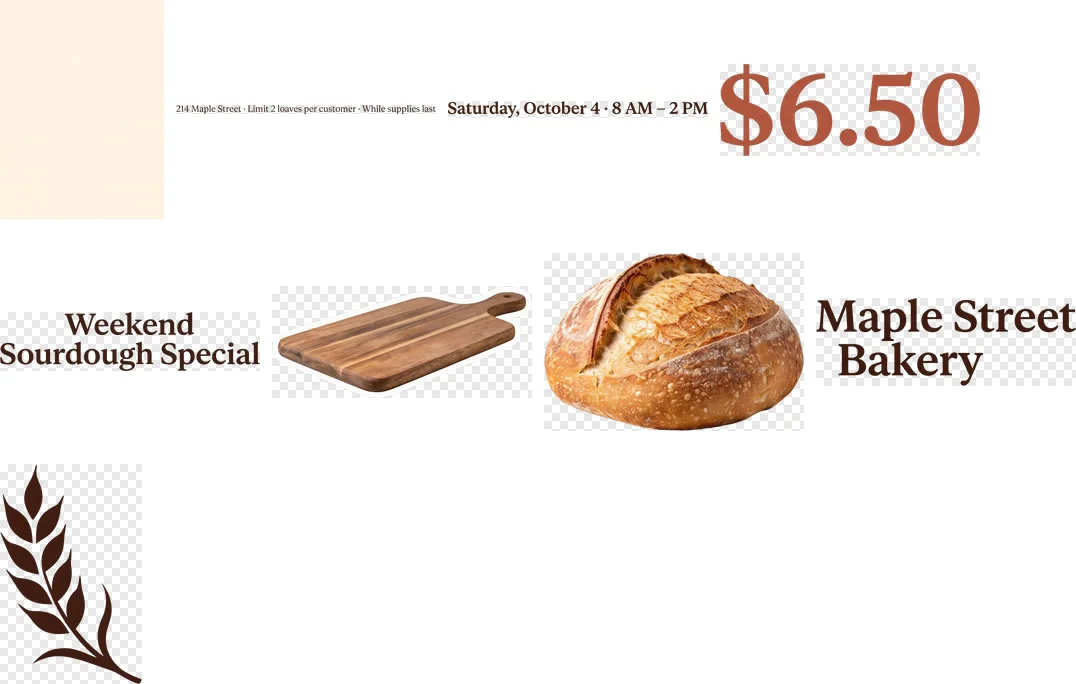
Every step up separated more of the flyer; the 9-layer run was the only one that returned fewer layers than requested.
| Requested | Returned | What came apart | Credits at 1K | Time |
|---|---|---|---|---|
| 2 | 2 | Every element on one layer | 10 | 43 s |
| 3 | 3 | Text and logo · bread with board | 15 | 51 s |
| 5 | 5 | Price, date and fine print · headline · bread with board · logo | 25 | 70 s |
| 7 | 7 | Date and fine print · price · headline · logo · board · bread | 35 | 72 s |
| 9 | 8 | Fine print · date · price · headline · board · bread · logo (board copy left in background) | 40 | 87 s |
| Auto | 9 | Fine print · date · price · headline · board · bread · shop name · wheat icon | 45 | 82 s |
One run per count, 29 September 2026 (2 and 7 layers on 21 September), 1K output. Credits are charged for the layers delivered, so the 9-layer run cost 40, not 45.
How do you count the pieces you need?
Answer these for your own image, count the answers, add one for the background, and pick the nearest option at or above that number.
- Which elements must move on their own?
- Which text will you retype or delete?
- Which element will you recolour or resize without touching the rest?
- Which elements can stay together, like the bread and its board?
- Does the logo need to come apart, or can it move as one piece?
Which layer count should you pick?
Count the pieces you need to move or edit independently, not every object in the picture, and add one for the background.
- 2 layers: you want the background without the text so you can retype it. This works on text set over a plain background; on an image with a large subject, 2 layers may lift out only the subject and leave the text in the background.
- 3 layers: you want the words and the main picture apart, for example to move the product photo or swap the whole text block.
- 5 to 7 layers: you want the headline, the price or the logo on layers of their own so you can resize or recolour one without the others.
- 9 layers or Auto: you want every text line and small graphic separate, for animation or a full rebuild. Auto does not promise a number; on this flyer it chose 9.
If an element you need comes back merged with its neighbour, run it again one step higher rather than cutting it apart by hand.
Why do small elements come back larger at higher counts?
When an element gets a layer of its own, it is redrawn larger than it sits in the original. Across our 15-run accuracy test, separated element layers came back a median of 2.17× larger at 1K.
On this flyer the fine print was not enlarged at 2 or 3 layers, because it shared a layer with the rest of the text. Once it had a layer of its own, at 9 layers, it came back 2.43× wider than in the original. The largest jump was the wheat icon under Auto: 5.54×, one element in one run.
The first run without an account is 2 layers, so it shows the text-free background but not this enlargement. Enlargement starts at 3 layers or more, which needs a paid plan or a credit pack.
How many credits does each layer count use?
Credits are the number of layers times the price per layer for the size you pick: 5 credits at 1K, 8 at 1.5K and 10 at 2K. The size menu in the tool shows the credits per layer before you run it.
| Layers | 1K | 1.5K | 2K |
|---|---|---|---|
| 2 | 10 | 16 | 20 |
| 3 | 15 | 24 | 30 |
| 5 | 25 | 40 | 50 |
| 7 | 35 | 56 | 70 |
| 9 | 45 | 72 | 90 |
| Auto (up to 17) | ≤ 85 | ≤ 136 | ≤ 170 |
With Auto you pay for the layers it actually returns, up to 17. 2K is larger, not sharper.
Do more layers always give a better result?
Not always. More layers split smaller pieces apart, but on our flyer the 9-layer run returned 8 layers and left a copy of the cutting board in the background, and on a cartoon character 7 and 9 layers failed outright. Pick the lowest count that separates the pieces you need. What we have seen:
- Asked for 9 layers, the flyer came back with 8, and the background kept a copy of the cutting board, so stacking the layers shows the board twice. Delete the extra from the background layer, or run again.
- On a cartoon character, 7 and 9 layers failed outright (one run at 7, three at 9). Failed runs are not charged.
- Whatever sits behind another element is a guess, never a recovery. Whether it is drawn at all varies with the image.
- Text comes back as a raster image layer, not as live editable text.
- It rebuilds an editable approximation of the image; it does not recover the original file or its original layers.
Layer count FAQ
Does every object need its own layer?
No. Count the groups you want to edit independently. Elements that always move together, like a loaf and its board, can share a layer.
Can I choose 4 or 6 layers?
No. The options are 2, 3, 5, 7 or 9 layers, or Auto. If you need 4 pieces, pick 5; if you need 6, pick 7.
How many layers does Auto return?
Auto lets the model decide from the image and returns between 2 and 17 layers. You pay for the layers it actually returns. On our flyer it chose 9.
Can AI split an image into layers?
Yes. It separates the elements onto transparent layers and rebuilds the background behind them. It rebuilds an editable approximation; it does not recover the original file or its original layers.
Is the text editable after splitting?
Text comes back as a raster image layer, not as live editable text. You can move, resize or hide it, or delete it and type new text in your own editor.
Try a count on your own image
Upload a PNG or JPEG, then choose the size and the layer count before you run it.